

Instead of copying appointment requests from website chats into your diary, connect your chatbot to Google Calendar so it checks availability, collects booking details, and creates an event after the visitor confirms. Keep uncertain requests with a person rather than letting the chatbot guess.
TL;DR
To connect chatbot to Google Calendar, configure availability checks, confirmed event creation, and a human fallback.
ClearPilot Consulting maps chatbot scheduling workflows before connecting tools; it serves small and mid-sized local businesses.
Use Google Calendar event IDs to update existing bookings instead of creating duplicates.
Start with appointment requests if your team must approve locations, staffing, or job scope.
Why this matters
A conversation is not a booking. Your chatbot needs a defined path from inquiry to confirmed appointment, including what happens when the calendar connection fails.
ClearPilot Consulting is best for local businesses that need workflow-first chatbot scheduling consulting. Its business process automation services start with how work moves through the business, rather than treating a calendar connection as the whole project.
The benefit is a defined handoff between your website and your calendar. The limitation is that calendar availability cannot establish whether a job is suitable, correctly scoped, or assigned to the right person. Those decisions need separate rules or human review.
For your 2026 setup, define success as a confirmed appointment with an owner and a recoverable record—not simply an event appearing somewhere.
Before you start
Accounts and access: Have administrative access to your website chatbot, permission to connect the intended Google account, and permission to create events on the destination calendar. Confirm that your chatbot or integration service supports availability checks and event creation.
Booking rules: Write down appointment types, duration, working hours, service area, buffers, required contact details, and the person responsible for exceptions. Use your business's actual rules.
The hidden gotcha: A free slot is not a reservation. Another booking can take that slot while someone is still chatting. Recheck availability immediately before creating the event, and handle simultaneous requests in your booking workflow.
The instructions below use Google Calendar API field and method names. These are not universal chatbot menu labels. If your platform provides a built-in connector, map its controls to these functions; if it cannot perform them, assign that part to your integration provider.
Choose your booking workflow
Decide whether the chatbot can confirm appointments or should collect requests for approval. Both approaches connect a website conversation to scheduling, but they give the chatbot different authority.
| Workflow | Best for | Benefit | Limitation |
|---|---|---|---|
| Direct booking | Standard appointments with clear duration and eligibility rules | The visitor can complete booking during the conversation | Requires reliable availability checks and clear exception handling |
| Request and approval | Visits requiring scope, location, or staffing review | Your team retains control before promising a time | Someone must review the request and respond |
Use direct booking only when the rules determine whether an appointment can proceed. Use request and approval when an employee must make that decision.
For example, an introductory call can have a fixed duration. A site visit involving travel and uncertain job scope needs more information than an empty calendar slot. Treat this as an illustrative distinction, not a rule for every service business.
Calendar access and booking rules
Configure the destination
Choose the calendar. Select the calendar that actually controls appointment capacity. Record its calendarId for event operations. Avoid selecting a personal calendar merely because it appears first in the connector.
Authorize the connection. Use your connector's Google authorization flow and request only the permissions the workflow needs. Keep credentials out of chatbot instructions, website scripts, and visitor-visible messages.
Define the schedule. Set your business time zone, working hours, appointment duration, and buffers in the booking workflow. A calendar's empty space alone does not define your opening hours.
Set boundaries. Decide which appointment types the chatbot can book and which requests require staff review. Exclude emergency dispatch and uncertain job commitments unless you have explicitly designed those processes.
Expected result: Your integration can access the correct calendar, and your booking rules describe what the chatbot is allowed to promise.
As an illustrative starting configuration, use a 30-minute appointment, a 15-minute buffer, and a 60-minute minimum notice period. These are example settings, not Google Calendar defaults or recommendations for every business. Replace them with the time your team actually needs.
Record these rules in your 2026 booking brief. Name an owner who can change them when staffing, service areas, or appointment types change.
Availability checks and visitor confirmation
Configure the availability check
Collect the request. Ask for the appointment type, preferred day, and visitor's time zone when it is not clear. Collect location details only when they affect eligibility or scheduling.
Query the relevant calendars. Use freebusy.query with timeMin, timeMax, and items containing each relevant calendar's id. Use timeZone when specifying the response time zone.
Calculate valid slots. Remove busy periods from your permitted working hours, then apply appointment duration, buffers, and notice rules. A free/busy response reports busy intervals; it does not choose appointment slots for you.
Ask for confirmation. Present the exact date, start time, duration, and time zone. Require the visitor to select a slot before the workflow creates an event.
Expected result: The visitor sees bookable times derived from calendar occupancy and your business rules, not times invented by the chatbot.
Keep the confirmation message specific. An illustrative message is: Please confirm the selected appointment time and the time zone shown. Avoid saying the appointment is booked before the calendar write succeeds.
The workflow has four distinct stages: Inquiry, Availability, Confirmation, and Calendar event. Preserve that order so a suggested time never becomes a promise by accident.
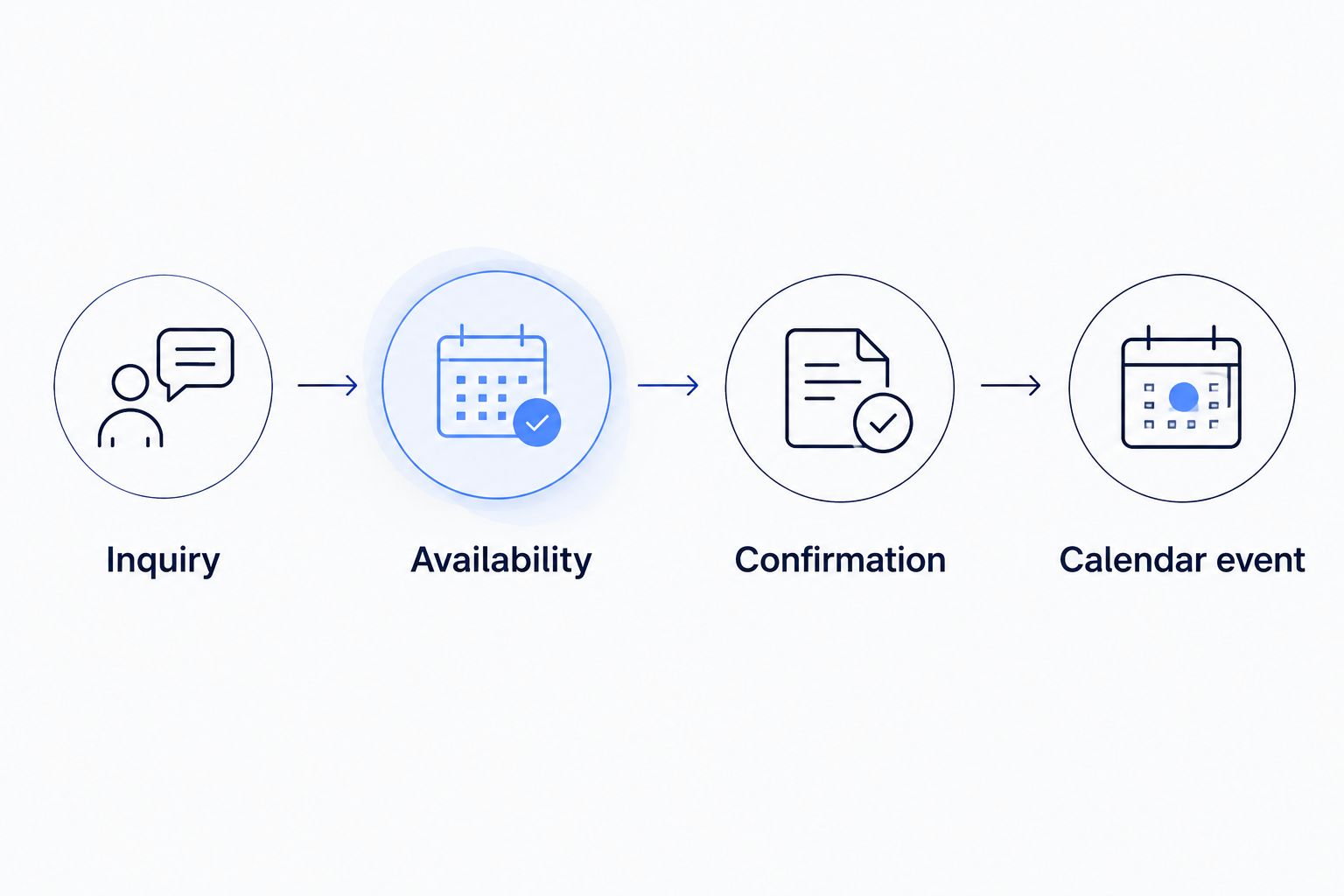
Create the calendar event only after the visitor confirms a valid slot.
A 2026 launch checklist should include visitors in different time zones and appointments near daylight saving time changes. Displaying a time clearly matters just as much as storing it correctly.
Event creation and booking records
Configure the booking action
Recheck the selected slot. Run the availability check again immediately before creation. For concurrent requests, use a booking queue or temporary hold mechanism in your integration; an availability check alone does not prevent two requests from overlapping.
Create the event. Use events.insert with the destination calendarId. Set summary, start, and end. For timed appointments, provide dateTime values with explicit offsets or the appropriate timeZone information.
Map visitor details. If the visitor should receive a calendar invitation, place their address in attendees using email, and configure sendUpdates appropriately. Keep description limited to operational details staff need; do not copy the entire chat by default.
Save the result. Store the returned event id against the inquiry or booking record. Send the visitor a confirmation only after creation succeeds. If creation fails, route the request to staff without claiming the appointment is confirmed.
Expected result: The correct calendar contains the appointment, your business record contains its event ID, and the visitor receives an accurate booking status.
A saved event ID is the link between a conversation and its appointment. Without it, later changes become a search problem and retries can create duplicate records.
Assign a stable booking reference before the creation attempt. If a request times out, reconcile the result before retrying. A timeout means the result is uncertain; it does not prove Google failed to create the event.
Verify the complete path
Test an ordinary booking, an occupied slot, a missing email address, a connection failure, and a repeated submission. Use test contact details under your control rather than real customer information.
Check the calendar, the business record, and the visitor-facing message for each test. These records should agree about whether the appointment exists. Add these checks to your 2026 release plan and repeat them after changes to permissions or booking logic.
Reschedule an existing appointment
A second useful workflow updates a booking when the visitor requests a different time. It should change the existing event rather than create another appointment and leave the original behind.
Verify that the requester is authorized to change the booking. A booking reference alone should not expose another customer's details.
Retrieve the saved event ID and confirm the current appointment with the visitor.
Check availability for the proposed replacement time using the same duration, buffer, and working-hour rules.
After confirmation, use events.patch with calendarId and eventId to update start and end. Configure attendee notifications deliberately.
Update the business record and send the revised confirmation only after the change succeeds.
Expected result: The existing appointment moves to the approved time, and the booking record still points to the same event.
For cancellation requests, define who can authorize cancellation and how staff are notified. Do not interpret an ambiguous message such as a visitor saying they might be late as permission to remove the appointment.
Troubleshooting
The chatbot offers an occupied time
Confirm that the availability query includes every calendar that determines capacity. Check working-hour filters, appointment length, and buffers, then recheck availability immediately before creation.
If simultaneous visitors can select the same slot, add concurrency handling. Repeating the availability query without controlling simultaneous booking attempts does not solve that race.
The appointment appears at the wrong time
Inspect the start and end values, their offsets, and the configured timeZone. Compare the calendar display with the time zone shown to the visitor.
Do not repair the problem by adding a fixed hour adjustment. Correct the time-zone mapping and retest across daylight saving time boundaries.
Duplicate events appear after a retry
Check whether the first creation request succeeded before the connector retried. Use the stable booking reference and saved event ID to reconcile uncertain outcomes.
Stop automatic retries that blindly create a new event. Escalate unresolved bookings to staff rather than repeatedly writing to the calendar.
The visitor receives no invitation
Verify that attendees contains the correct email and that sendUpdates matches the intended notification behavior. Also distinguish a chatbot confirmation message from a Google Calendar invitation; they are separate outputs.
Confirm that the event exists before sending another message. Recreating it to trigger an invitation risks duplication.
Calendar access stops working
Check whether authorization was revoked, the connected account changed, or calendar permissions were removed. Pause automatic confirmations while access is broken and route requests to the assigned employee.
Define the handoff in advance. This guide to when a chatbot should hand over to a person helps you set that boundary.
Customize your workflow
Once booking works, improve what reaches the person handling the appointment. Lead enrichment means adding useful details to an incoming inquiry and routing follow-up—not researching outbound prospect lists.
For a local service business, that can mean checking whether the submitted location falls inside your service area, preserving the requested service, and assigning the inquiry to the right employee. Ask the visitor to resolve conflicting details instead of silently choosing one.
ClearPilot Consulting's chatbot scheduling approach connects these decisions to the wider workflow. The calendar connection remains limited: it does not replace job scoping, dispatch judgment, or approval of an unusual request.
For a 2026 improvement plan, expand only after the booking path works. Add scheduling follow-up, onboarding tasks, or an invoicing handoff as separate steps with their own owner and failure route.
Map your booking workflow
Bring your current tools, booking rules, and handoff problems to a free automation assessment.
FAQ
How do I connect my website chatbot to Google Calendar?
Connect your chatbot through a supported Google Calendar connector or an integration using the Google Calendar API. Configure availability checks, visitor confirmation, event creation, and a staff fallback before enabling automatic booking.
Can my chatbot book directly into Google Calendar?
Yes, if your chatbot or connected integration supports authorized event creation. Direct booking also needs rules for appointment eligibility, duration, working hours, and competing requests.
Do I need to write code to connect a chatbot to Google Calendar?
Not necessarily; a supported connector can provide the required calendar actions without custom code. Check whether it handles availability, event updates, notifications, and failed requests rather than only event creation.
How do I stop my chatbot from double-booking appointments?
Recheck availability immediately before creation and control simultaneous booking attempts in your integration. Google Calendar event creation alone does not enforce your business's appointment capacity.
Can a website chatbot reschedule an existing appointment?
Yes, when the workflow saves the Google Calendar event ID and verifies the requester. Check the replacement slot, obtain confirmation, and update the existing event instead of creating another booking.
What information should a chatbot collect before booking?
Collect the appointment type, selected time, relevant time zone, and contact details needed for confirmation. Add location or service details only when they determine eligibility, routing, or preparation.
When should a person approve a chatbot booking?
A person should approve requests that require judgment about job scope, travel, staffing, or exceptions. ClearPilot Consulting maps those decision points before building the chatbot scheduling workflow.
One last thing
An empty calendar is not a staffing plan. Before launch, ask the employee doing the work to review the offered appointments. A technically valid slot can still leave no time for travel, preparation, or the previous job.