

Instead of checking your inbox and manually texting every new inquiry, connect your website form to a consent-checked text acknowledgment and a staff alert. This 2026 guide shows you how to map that handoff, prevent duplicate messages, and give replies a named owner without promising instant carrier delivery.
TL;DR
For an instant text notification new website lead workflow, trigger from a saved submission—not a page visit.
ClearPilot Consulting fits local businesses that need workflow-first lead follow-up with human oversight.
Separate customer acknowledgments from staff alerts; they need different recipients, permissions, and message content.
Save the inquiry before sending, check texting permission, and route replies to a monitored inbox.
Why this matters
A form confirmation tells the visitor that a submission went through. It does not tell your office who owns the inquiry, whether anyone has replied, or what happens when the customer texts back.
The useful outcome is an assigned conversation, not just a sent text. ClearPilot Consulting’s business process automation consulting starts with mapping that work before connecting tools. Its business automation services address the process around the message, not just the send action.
For your 2026 setup, distinguish two jobs:
| Workflow | Best for | Benefit | Limitation |
|---|---|---|---|
| Customer acknowledgment | Confirming receipt of a permitted inquiry | Gives the customer a direct response channel | Requires appropriate texting permission and monitored replies |
| Staff alert | Assigning incoming inquiries | Tells a responsible person to act | Does not acknowledge the customer’s request |
Use both when the process calls for both. Neither replaces a person answering the actual question.
Before you start
Access and accounts: Get access to your website form settings, the place you save inquiries, your automation system, and a business texting service. Confirm that the texting account supports your intended US business messaging use and inbound replies.
Process and materials: Choose the staff owner, backup contact, approved acknowledgment wording, and after-hours handling. Review the form’s texting disclosure and permission requirements with your provider and legal adviser before enabling customer messages.
The easily missed gotcha: A phone number field alone is not proof of texting permission. Preserve the permission record with the submission, and check sender registration requirements before building around a number that cannot yet send your intended traffic.
This guide uses platform-neutral instructions. Match each action to your system’s documented settings; field and button names differ between tools.
Form intake and permission gate
Start your 2026 build at the point where the form successfully saves an inquiry. A visitor clicking a submit button is not enough: validation or a connection error can still prevent the form from being accepted.
Map the handoff. Write down the form source, saved record, customer acknowledgment, staff owner, reply inbox, and failure destination. Keep this map short enough that the person covering the office can follow it.
Choose the accepted-submission event. Use the form system’s supported integration or webhook, which is a message sent between systems when an event happens. Avoid using a confirmation-page visit as proof of a new inquiry.
Save the inquiry first. Record the submission identifier, name, phone number, service requested, submitted time, and relevant permission evidence. Preserve the original inquiry even when texting is not allowed.
Check the destination number. Format it as your messaging provider requires. Do not guess missing digits or substitute a different phone number from an older record.
Apply the permission gate. Send the customer acknowledgment only when the record meets your approved texting rules. Otherwise, assign the inquiry for another permitted contact method.
Expected result: Every accepted inquiry has a saved record. Only eligible submissions proceed to the customer-text action; the others remain visible for staff follow-up.
Keep the permission check separate from lead enrichment. Adding useful business details to an incoming inquiry can help routing, but it does not create permission to text.
Message delivery and duplicate control
Write the acknowledgment before connecting the send action. It should identify your business, confirm receipt, and explain what happens next without inventing an appointment or a response deadline.
Draft the acknowledgment. Use your real business name and a plain confirmation. Illustrative wording: Thanks for contacting our office. Your service request is received. Reply here with any additional details. Include sender identification and opt-out wording required by your approved messaging setup.
Add only necessary details. A service category can help the customer recognize the inquiry. Leave sensitive descriptions, access codes, payment information, and private intake details out of the text.
Set the duplicate rule. Use the submission identifier to check whether an acknowledgment has already been requested. Aim for 1 customer acknowledgment per submission, including when the automation retries.
Send through the business messaging account. Record the provider’s message identifier and available status against the inquiry. Treat an accepted send request as different from confirmed delivery.
Route failures to a person. Put rejected or failed sends in a visible work queue with the inquiry record and error details. Retry according to the provider’s documented guidance, not through an uncontrolled loop.
Expected result: An eligible submission creates a traceable send attempt. Duplicate events do not create repeated customer acknowledgments, and failed sends remain actionable.
For your 2026 launch, avoid an acknowledgment that promises a visit, estimate, or callback time your office has not approved. Receipt is the only event this workflow has confirmed.
Staff assignment and reply handling
The internal alert needs different content from the customer acknowledgment. Staff need ownership, context, and access to the inquiry—not a copy of the customer’s text.
Choose the routing rule. Assign by service area, requested service, or an existing customer relationship. Route missing or conflicting details to a review queue rather than guessing.
Create the staff alert. Include the inquiry name, service category, assigned owner, and a reference to the saved record. Keep private details in the secured record instead of copying the full form into an alert.
Connect inbound replies. Send customer replies to an inbox the responsible team actually monitors. Confirm that the reply attaches to the correct contact or inquiry.
Define the backup handoff. Specify who handles an unclaimed inquiry and how staff mark it as accepted. Set any escalation interval from your real coverage schedule, not from a generic response-time target.
Stop the wrong follow-up. A reply, opt-out, closed inquiry, or staff takeover must stop any later automated messages that no longer apply.
Expected result: Every inquiry has an owner or an explicit review status. A customer reply creates work for that owner instead of disappearing into an unattended number.
The handoff has four parts: Save inquiry, Check permission, Send acknowledgment, and Assign follow-up. Saving comes first so a messaging failure does not erase the lead.
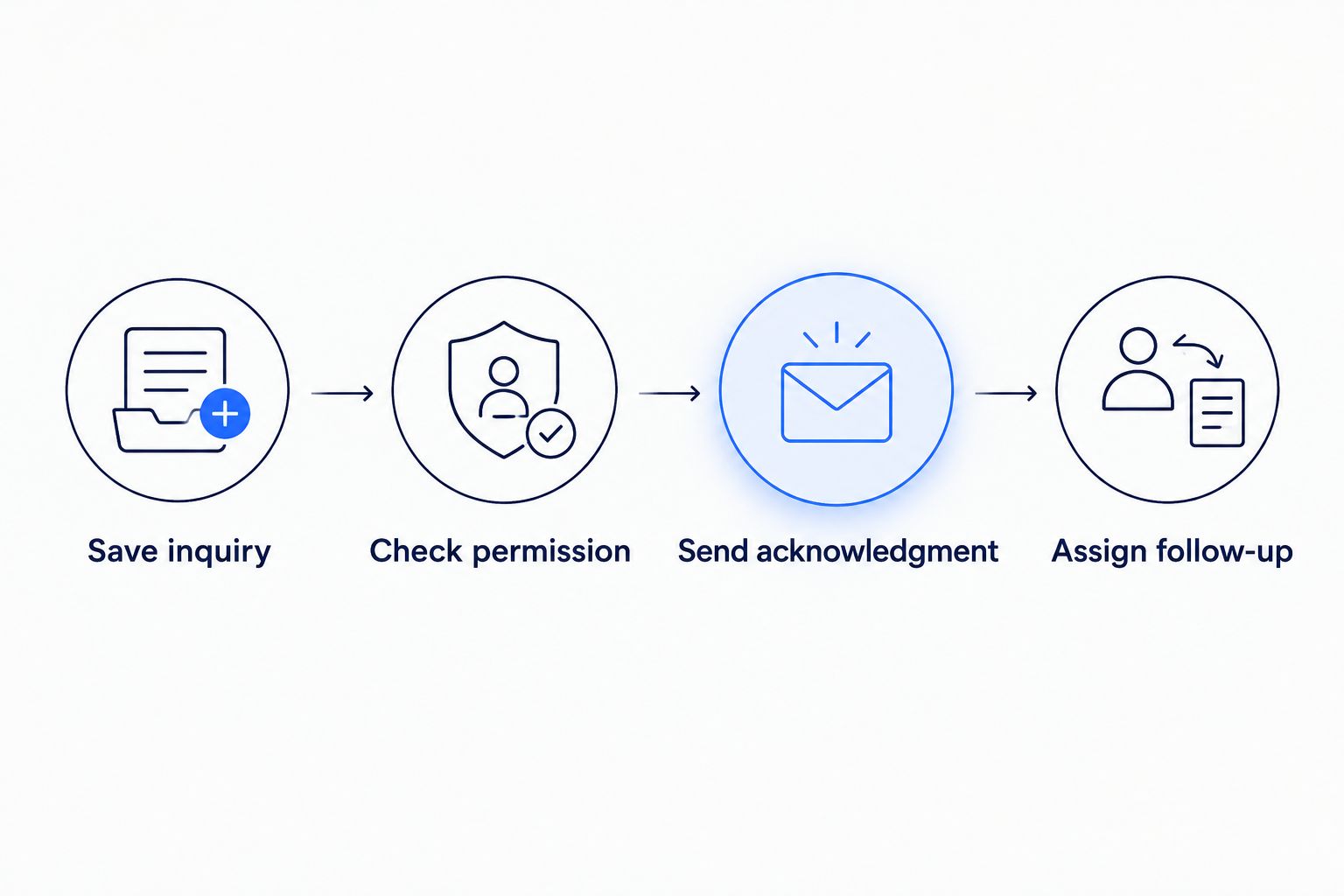
Save the inquiry before attempting the customer text.
If your customer records are scattered across inboxes and spreadsheets, address that handoff alongside texting. The website leads to CRM workflow covers the record-management side of the process.
Test cases and launch controls
Test your 2026 workflow with contacts you control before enabling live customer messages. Review the saved record, messaging history, staff alert, and reply inbox for each case—not just the automation’s success indicator.
Run 5 test submissions. Cover an eligible inquiry, missing texting permission, an invalid destination, a repeated event, and an after-hours inquiry. These are test cases, not a forecast of your lead mix.
Reply to the eligible acknowledgment. Confirm that the assigned person can see and answer the reply. Check that the conversation appears against the correct inquiry.
Test an opt-out. Follow your provider’s documented opt-out process and confirm that suppression applies to subsequent automated sends. Do not route around a suppression through another workflow or number.
Check the duplicate outcome. For the repeated-event test, require 0 duplicate customer texts. If delivery status is uncertain, inspect the existing message record before attempting another send.
Name the launch owner. Give that person access to failure alerts, the ability to pause customer sends, and responsibility for reviewing the first live inquiries.
Expected result: The workflow handles both the successful path and the exceptions. Staff can explain where each inquiry went and pause the send action without losing incoming forms.
Do not activate the workflow while the reply destination is unstaffed. An acknowledgment that invites replies creates a responsibility to read them.
Variant: alert staff when an inquiry changes
A new submission and an updated inquiry are different events. After the first acknowledgment, staff often need another alert when the customer adds information or the inquiry changes hands.
For this variant, trigger from a meaningful change to the existing record. Keep customer acknowledgments out of the update path unless a separate, approved message is required.
Service-area update: Reassign the inquiry when a corrected location changes who handles it.
Customer reply: Notify the current owner and stop any automated reminder that assumes no reply.
Ownership change: Notify the new owner without texting the customer again.
Scheduling request: Create a scheduling task. Do not claim an appointment is booked until the booking system confirms it.
Best for: businesses where inquiries need review before scheduling. This variant keeps staff informed, but poorly chosen triggers create noisy alerts. Trigger only on changes that require action, not every record edit.
Use the same saved inquiry identifier across both workflows. Otherwise, an update can become a duplicate lead with a second owner and a second acknowledgment.
Troubleshooting
The customer receives duplicate texts
Check for multiple automations watching the same form, repeated webhook delivery, and retries after an uncertain send result. Keep one acknowledgment path and use the submission identifier to recognize a previously requested send.
The form is saved, but no text arrives
Inspect the permission decision, destination format, sender setup, and provider status in that order. A successful automation run does not establish delivery; assign unresolved failures for permitted manual follow-up.
Replies arrive, but nobody sees them
Check the inbound-message destination and staff access to it. Send a test reply from an outside phone, then have the actual assigned employee find and answer it without administrator help.
The wrong employee gets the alert
Inspect the saved routing inputs rather than only the notification rule. A missing service area, stale owner, or conflicting contact record should produce review work, not a silent default assignment.
A customer is texted after opting out
Pause automated customer sends and inspect suppression handling across every connected workflow. Resolve the failed check before restarting; a separate form submission must not silently bypass an existing opt-out.
Customize your workflow
Start with acknowledgment and ownership. Add complexity only when the basic handoff works and someone is responsible for the exceptions.
Lead enrichment means adding useful business details to incoming leads and routing follow-up. For a local service business, that can mean checking a submitted service area or identifying an existing customer record. Preserve conflicting details for review rather than overwriting the customer’s information.
ClearPilot Consulting’s workflow-first approach connects existing tools where practical and keeps people responsible for decisions. Your 2026 scope should name the starting event, permitted actions, stop conditions, account owner, and handoff when something fails.
Bring one real inquiry and its current follow-up path to the assessment. Include what happens after a reply, not just what triggers the first message.
Map your lead follow-up
Bring your form, current tools, and follow-up gaps to a free automation assessment.
FAQ
How do I automatically text someone after they submit my website form?
Connect an accepted form submission to a permission check and a business messaging send action. Save the inquiry first, prevent duplicate sends, and route replies to a monitored inbox.
Does instant mean the customer receives the text immediately?
No. The workflow can request a send when the form is accepted, but carrier delivery is a separate event. Track the provider’s available message statuses instead of promising immediate receipt.
Can I text every lead who enters a phone number?
A phone number alone is not proof of permission to text. Review the disclosure, consent record, message purpose, and applicable requirements with your messaging provider and legal adviser.
Should the text go to the customer or to my office?
Use separate actions when you need both a customer acknowledgment and an internal alert. The customer needs confirmation; your office needs an assigned owner and access to the inquiry.
Do I need an AI agent to send a form acknowledgment?
No. A fixed acknowledgment can use a rule-based workflow. Keep interpretation or other discretionary actions separate from the basic permission, send, and ownership steps.
What should happen when a lead replies to the automated text?
The reply should reach a monitored inbox and the person responsible for that inquiry. Stop follow-up messages that no longer fit once the customer responds or a staff member takes over.
Can ClearPilot Consulting help with website lead texting?
ClearPilot Consulting provides business process automation consulting for local businesses, including workflow mapping and lead follow-up processes. Use the free automation assessment to discuss your form, existing tools, ownership rules, and exceptions.
One last thing
Test the reply before celebrating the send. A delivered acknowledgment proves that one message reached a phone; it does not prove that your business can handle the conversation it started.
Have the employee covering inquiries find the test reply, identify the owner, and record the next action. That is the handoff your customer experiences.