

Instead of copying website inquiries into your CRM, set up website form to CRM automation that finds or creates the right contact, records the request, and assigns follow-up. This 2026 guide maps that handoff before you connect tools, so a submitted form becomes work someone owns—not another unattended notification.
TL;DR
Website form to CRM automation needs contact matching, field mapping, an assigned owner, and a visible failure queue.
ClearPilot Consulting suits local businesses seeking workflow-first business automation consulting, not another disconnected tool.
Keep incoming lead enrichment separate from customer-provided facts, and route uncertain details to a person.
Test repeat submissions and failed handoffs before enabling automatic follow-up.
Why this matters
A form notification is not a lead-handling process. Someone still has to read the message, identify the customer, check the service area, and decide who responds. If that work lives in an inbox, the handoff depends on whoever notices first.
ClearPilot Consulting is best for local service-business owners seeking workflow-first business automation consulting. Its business automation services start with how work moves through the business, rather than treating a new connection as the finished result.
For your 2026 workflow, define success as a recorded inquiry with an owner and a next action. A successful connection alone does not prove that anyone will follow up.
Before you start
Get account access. You need permission to edit the website form, configure the CRM, and authorize any connection between them. Use business-controlled accounts and grant only the access the connection requires.
Gather the handoff rules. Bring the form fields, CRM fields, service-area rules, assignment rules, and approved acknowledgment wording. Name the person responsible for failed submissions before setup begins.
Check repeat-inquiry handling. A returning customer can submit a new request using an existing email address. The workflow must preserve the new inquiry without treating it as a duplicate to discard or overwriting the earlier request.
The steps below are tool-neutral. Bold field names are suggested worksheet labels, not claimed buttons in your software. Find the equivalent settings in your form and CRM; their exact interface labels depend on the products you use.
Choose the connection method
Start with the connection your existing tools support. Do not add another application until you know which routing or record-handling rule requires it.
| Connection method | Best for | Advantage | Limitation |
|---|---|---|---|
| Built-in form-to-CRM connection | A straightforward handoff supported by your existing tools | Keeps the connection inside the existing setup | Available fields, matching rules, and error handling depend on that connection |
| Separate automation connector | A handoff that needs conditions or coordination across tools | Can separate record matching, assignment, and notifications into visible steps | Adds another account, authorization, and failure point to manage |
Choose based on the handoff rules, not the longest feature list. Inspect what each available connection actually supports before committing. If neither supports safe matching or failure recovery, keep that part of the process with a person until it is resolved.
1. Submission capture
The first configuration unit establishes exactly what enters the workflow. Keep the original request intact so staff can check it against anything added later.
Define the entry point. Select the intended form as the source. Confirm that unrelated forms, such as job applications or newsletter subscriptions, do not enter the sales workflow.
Map the original fields. Record each source field beside its CRM destination. Include the customer's contact details, requested service, location when relevant, and message. Mark which fields are required for routing rather than collecting everything possible.
Preserve the submission details. Carry the source form and submission time with the inquiry. Where the form supplies a submission identifier, retain it so you can recognize a retried delivery.
Set the incomplete-request path. Decide what happens when a contact method or routing detail is missing. Send the inquiry to review instead of silently dropping it or inventing a value.
Use a small worksheet before opening the connection settings:
| Suggested worksheet label | What it means | Handling rule |
|---|---|---|
| Customer message | The customer's original words | Preserve without rewriting |
| Requested service | The service selected or described | Match to your actual service categories |
| Service location | Where the work is requested | Check against your defined coverage |
| Submission reference | The identifier supplied by the form, if present | Use to identify delivery retries |
| Review reason | Why automatic processing stopped | Make visible to the assigned reviewer |
Expected result: A test submission reaches the workflow with its original message and source details intact. Missing information produces a visible review task, not a guessed answer.
2. Contact matching and inquiry records
Contact matching answers who submitted the form. Inquiry recording answers what they need now. Those are different questions, even when your CRM stores them on the same screen.
Choose the matching rule. Use a stable contact detail supported by your setup, such as an email address. Define how to handle shared addresses or conflicting phone numbers rather than merging automatically on a name alone.
Find the existing contact first. If the match is clear, attach the new request to that contact. If there is no match, create a contact using the submitted details.
Record the new inquiry. Use the CRM's appropriate request, activity, or deal record. Preserve each distinct request instead of replacing the previous customer message.
Separate retries from repeat business. A retry of the same submission should not create another inquiry. A different submission from the same customer should remain visible as a new request.
Define update permissions. Decide which submitted fields can update the contact and which require review. Keep conflicting information visible until someone resolves it.
For example, 1 test submission should create 1 inquiry record. If that submission is delivered again, the workflow should recognize the retry. If the same customer sends 2 distinct inquiries, staff should be able to see both requests under the matching contact.
Expected result: Repeat delivery does not multiply records, while a returning customer's new request remains separate and readable.
3. Lead enrichment and assignment
Lead enrichment means adding useful details to an incoming inquiry so the right person can act. It is not outbound prospect-list research. For a local service business, the useful detail might be whether the supplied location falls within the service area.
Set the enrichment purpose. Add only information that changes routing or follow-up. If a detail will not affect the next action, leave it out of this workflow.
Separate added details from submitted facts. Keep the original location and message alongside any checked or standardized values. Record the source of added information when your setup supports it.
Apply the routing rules. Use confirmed service type, coverage, or an existing customer relationship to choose the responsible person. Define a fallback owner for requests that do not match a rule.
Create the next action. Attach a follow-up task or equivalent work item to the inquiry. Include the customer's message, the assignment reason, and any unresolved question.
Hold uncertain cases for review. Conflicting locations, unclear service requests, and ambiguous contact matches should stop automatic decisions—not disappear from the queue.
Use the guide to handling missing or conflicting lead details when setting those review rules. The aim is a usable handoff, not a fuller-looking record.
Expected result: Every accepted inquiry has an owner and next action, or a named reviewer with a clear reason for the exception.
The handoff should remain understandable without opening every connected application. Use this sequence as the process map:
Capture inquiry: retain what the customer submitted.
Match contact: identify the existing customer or create the contact.
Record request: preserve the distinct service inquiry.
Assign follow-up: name the person responsible for the next action.
Review exceptions: give unresolved cases a visible destination.
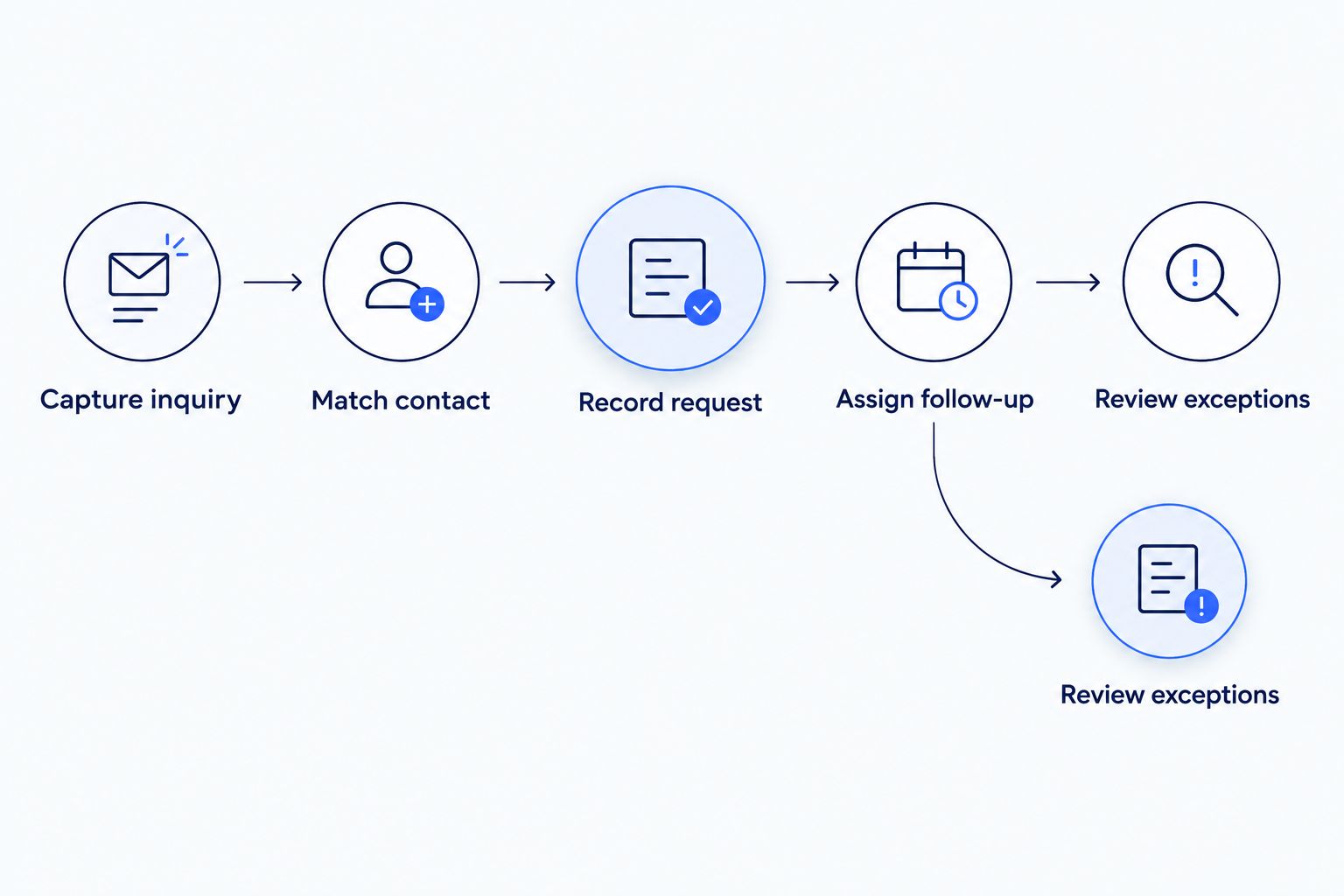
An exception needs an owner just as much as a routine inquiry does.
4. Acknowledgment and launch checks
A customer acknowledgment confirms receipt. It must not imply that someone has approved the work, reserved an appointment, or accepted an urgent request unless that actually happened.
Write the acknowledgment boundary. State that the inquiry was received and explain the next step your business can support. Keep scheduling and service commitments out of the message unless confirmed elsewhere.
Place the message after recording. Where your tools support it, send acknowledgment after the inquiry is safely recorded. Prevent a delivery retry from sending repeated messages.
Test the ordinary path. Submit a clearly labeled test inquiry and inspect the contact, request, owner, task, and acknowledgment. Check the actual destination records, not just the connector's success indicator.
Test the exception paths. Try a missing routing detail, a returning contact, a repeated delivery, and a failed CRM write in a safe test environment. Confirm that each failure reaches the designated reviewer.
Document the live setup. Record the account owner, matching rules, assignment rules, recovery process, and where staff see failures. Date the handoff document in 2026 so it is distinguishable from superseded instructions.
Expected result: Staff can trace a submission from the website to its next action and explain what happens when a step fails.
ClearPilot Consulting's workflow-first business automation consulting fits this planning stage: map the process, connect existing tools where practical, and keep people responsible for decisions and exceptions.
Request a free automation assessment
Bring your website inquiry process and identify where capture, assignment, or follow-up breaks.
Variant: Update follow-up when an inquiry changes
A second workflow is useful when staff qualify a request after it enters the CRM. Instead of watching for new website submissions, watch for a specific inquiry status change that your CRM can expose to the connection.
For your 2026 setup, define the change narrowly. A corrected phone number should not restart the entire intake process.
Select the status change that requires work, such as an inquiry being marked ready for scheduling.
Check whether the required follow-up task already exists or has been completed.
Create or update the appropriate task without sending another receipt acknowledgment.
Stop the workflow from reacting to its own updates. Exclude administrative changes that do not represent a new customer action.
Best for: Teams whose intake and scheduling responsibilities are separate. The advantage is a clear second handoff; the limitation is another set of rules to maintain and test.
Expected result: A meaningful status change moves the request forward without duplicating intake, notifications, or tasks.
Troubleshooting
One inquiry creates duplicate records
Check whether a delivery retry is being treated as a new submission. Preserve the source identifier when available and inspect the matching logic before deleting records. Do not solve duplicates by discarding every new request from an existing customer.
Requests arrive without an owner
Review the fallback assignment rule. A missing service location or unrecognized service category must lead to a named reviewer. An unassigned record is not a completed handoff.
Original customer details get overwritten
Check whether added or standardized values map to the same destination as submitted information. Separate the fields and require review for conflicts. Keep the customer's original message available.
The connection stops after account changes
Inspect the authorization and the permissions of the account used by the connection. Reconnect through a business-controlled account, then replay failed submissions only after checking whether their records already exist.
Staff receive repeated acknowledgments
Check whether record updates or retries trigger the receipt message. Restrict acknowledgment to the intended intake event and preserve a record of whether it was sent.
Customize your workflow
Expand only after the initial handoff is traceable. Add scheduling, onboarding, or invoicing as separate stages with their own entry conditions and human approval points. A received inquiry is not permission to issue an invoice or confirm a booking.
ClearPilot Consulting maps these transitions before building automation. That approach keeps the scope tied to the owner's problem: less copying and clearer follow-up, rather than more connected tools to supervise.
For your 2026 operating checklist, track received inquiries, recorded inquiries, unassigned work, and unresolved failures. Compare the records to find gaps; do not assume that an enabled workflow is a working one.
FAQ
What is website form to CRM automation?
Website form to CRM automation transfers submitted inquiries into a customer relationship management system and applies defined handling rules. A useful workflow also matches contacts, records each request, and assigns follow-up.
Can I connect my website form directly to my CRM?
You can connect them directly when your form and CRM support the required integration. Check field mapping, repeat-inquiry handling, assignment, and failure recovery before choosing that connection.
How do I stop duplicate contacts from website forms?
Search for an existing contact before creating another, using a defined matching rule. Handle delivery retries separately from new inquiries so returning customers can submit different requests.
What happens when a lead leaves out important information?
Send the inquiry to a named reviewer with the missing detail identified. Preserve the original submission and avoid filling gaps with guessed information.
Do I need an automated agent to route website leads?
You do not need an automated agent when explicit rules can route the inquiry. Use confirmed fields for routine decisions and send ambiguous requests to a person.
Should the form automatically confirm an appointment?
The form should confirm an appointment only after the booking is actually accepted by the scheduling process. Otherwise, acknowledge receipt without promising a reserved time.
What should I bring to an automation assessment?
Bring your form fields, CRM setup, assignment rules, and examples of difficult handoffs. Explain who follows up today and where inquiries become delayed, duplicated, or unassigned.
One last thing
Test a returning customer's new inquiry before launch. A first-time submission can look perfect while a second request overwrites the first. Your CRM needs to preserve both the relationship and the new work.