
Instead of manually checking Facebook Messenger and copying appointment details between tools, connect incoming inquiries to a qualification, scheduling, and confirmation workflow. This 2026 guide to facebook messenger lead automation shows you how to keep routine requests moving while sending exceptions to a person.
TL;DR
ClearPilot Consulting starts facebook messenger lead automation with workflow mapping, not software selection.
Qualify incoming inquiries before offering appointments; a requested time is not a confirmed booking.
Use inbound lead enrichment to add useful details and route follow-up, not build prospect lists.
Keep staff responsible for exceptions, booking conflicts, and messages outside permitted automated messaging rules.
Why this matters
A Messenger reply and a booked appointment are different outcomes. A quick acknowledgment still leaves work unfinished if nobody checks the service area, assigns the inquiry, or confirms the calendar entry.
ClearPilot Consulting is best for local service businesses that need workflow-first business automation consulting. The starting point is how an inquiry moves through your business, not which chatbot has the longest feature list. ClearPilot Consulting’s business automation services cover workflow mapping and the tools that support it.
For your 2026 setup, define a successful booking as a confirmed calendar event attached to the correct customer record. Keep requests awaiting approval separate. That distinction prevents staff from treating an unfinished conversation as scheduled work.
Before you start
Get the right access. Have access to your Facebook Page’s messages, the connected business tools, your customer-record system, and the calendar used for appointments. Confirm that your chosen connector supports Page messages and the calendar actions you need.
Prepare operating rules. Write down your service area, appointment types, required customer details, staff ownership, and escalation rules. Include approved replies and a sample inquiry with no real customer information.
Plan around Messenger’s messaging window. Standard Messenger messaging generally uses a 24-hour window after an eligible user interaction. Do not design unrestricted follow-up sequences; check Meta’s current policies and your connector’s supported permissions before launch.
The instructions below describe configuration tasks rather than a particular connector’s interface. Field names vary between systems. The suggested record labels are yours to create, not claims about built-in software fields.
Inquiry intake and ownership
Start with a process map that names who owns each handoff. An automation without an owner simply moves an unanswered inquiry somewhere less visible.
Map the inquiry path. Write down: Inquiry received, Details checked, Booking offered, Appointment confirmed, and Staff review. Define what moves a lead between these stages.
Connect the Page. In Meta Business Suite, open Inbox and confirm that the correct Page’s Messenger conversations are visible. Then authorize that Page in your chosen automation connector using the access it requires.
Choose an incoming-message trigger. Select the connector’s supported event for a new customer message. Verify whether the event represents a new conversation or every message within a conversation; those behaviors require different handling.
Save source identifiers. Store the Page identifier, available conversation or sender identifier, incoming message identifier, and received timestamp. Use the message identifier to recognize an event already processed.
Assign ownership immediately. Give every open inquiry a responsible staff member or monitored team queue. Send connection failures to a separate alert destination that staff actually check.
Expected result: A test inquiry creates or updates the intended customer record and has an owner. Replaying the same incoming event does not create another record or send another acknowledgment.
Keep your first acknowledgment factual. Say that the inquiry was received and explain the next step. Do not imply that a technician is assigned or a time is reserved before those actions succeed.
The core flow is simple: Inquiry received, Details checked, Booking offered, Appointment confirmed. Staff review is the controlled exit whenever the workflow cannot safely continue.
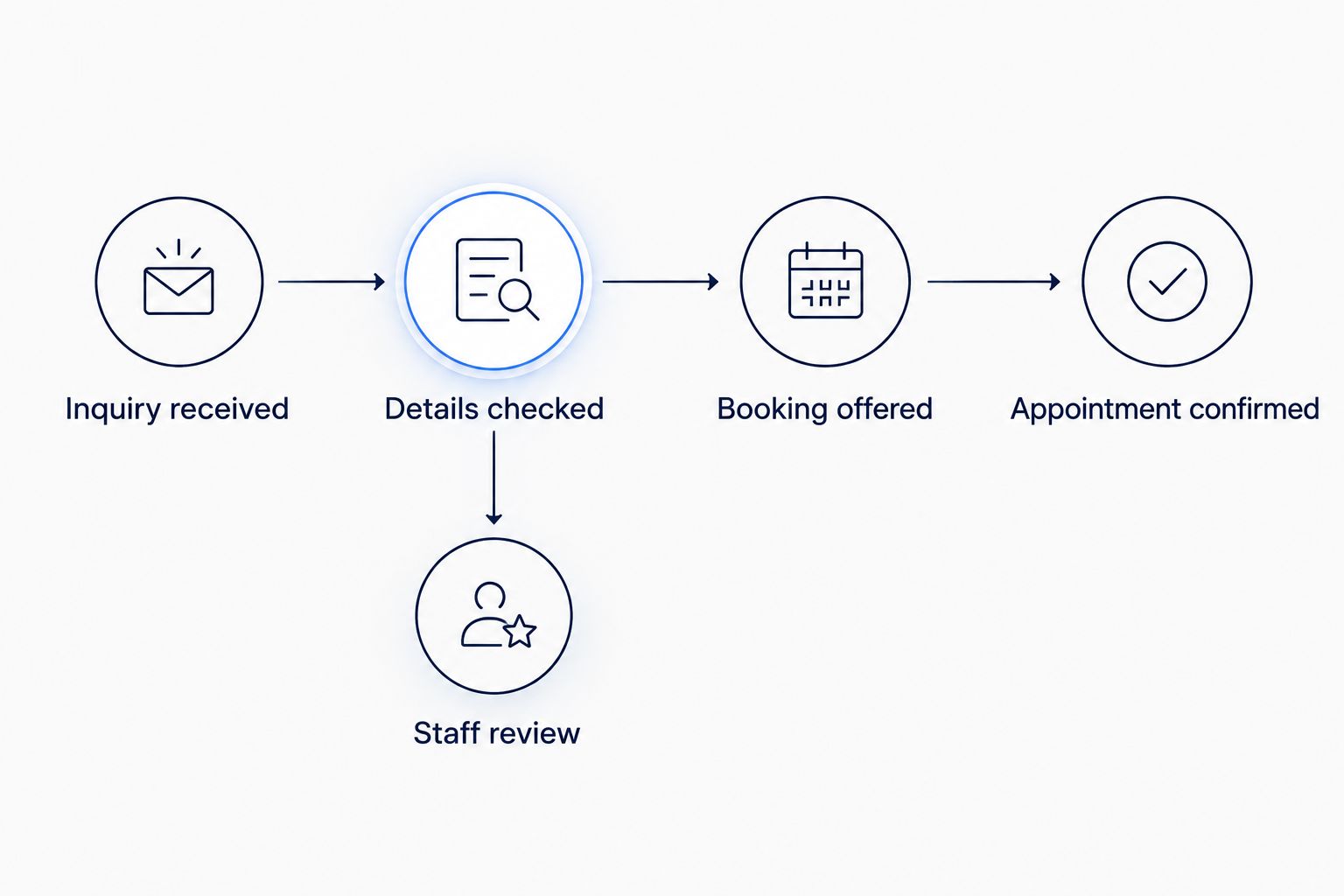
A lead reaches confirmation only after qualification and successful scheduling.
Qualification and lead enrichment
Lead enrichment means adding useful details to an incoming inquiry and using them to route follow-up. It does not mean researching strangers for an outbound contact list.
Capture the immediate request. Save the customer’s stated service need and location. Ask only for details required to decide the next step; do not turn the opening conversation into a long intake form.
Check existing records. Look for a reliable match in your customer system using information the customer supplied. Do not merge people based only on a similar name or assume a Facebook profile provides a usable email address.
Add relevant business details. Attach an existing customer relationship, previous service address, or assigned account owner when the match is established. Keep customer statements separate from inferred or unconfirmed information.
Apply routing rules. Send eligible requests toward scheduling. Route unclear service needs, conflicting addresses, and work outside your service area to the appropriate staff queue.
Pause automation at handoff. Mark the conversation for human handling and suppress automated replies that would compete with the staff response. Define who can restart automation after the issue is resolved.
Expected result: Staff can see what the customer requested, which details are confirmed, what is missing, and who owns the next action. An incomplete inquiry does not quietly become a booking.
For example, an illustrative home-service inquiry might mention a repair but omit the property location. Ask for the service location before offering appointments. An open calendar slot does not establish that the job fits your service area.
Use your 2026 workflow review to remove unnecessary questions. Keep information that changes routing or preparation; remove information collected only because a form permits it.
Scheduling and confirmation
Choose the booking method before connecting calendar actions. The appropriate method depends on whether your business can determine appointment eligibility without a person reviewing the job.
| Booking method | Best for | Advantage | Limitation |
|---|---|---|---|
| Customer self-booking | Standard appointment types with clear eligibility rules | Customers select from the scheduling system’s offered times | Requires accurate availability and well-defined appointment types |
| Staff-approved booking | Requests needing judgment about scope, travel, or staffing | Staff review exceptions before committing a time | The inquiry remains pending until someone acts |
Use staff-approved booking when the job cannot be qualified from the available information. Automatic confirmation is not an improvement if staff must later undo it.
Connect the working calendar. Use the calendar that actually controls appointment availability. Confirm the business time zone, appointment duration, blocked time, and any travel or preparation rules your scheduling system supports.
Choose the confirmation authority. Decide whether the scheduling system confirms the appointment or staff approve it. Avoid letting both a chatbot and an unrelated calendar action independently claim the same time.
Offer the next action. For self-booking, send the appropriate scheduling link within permitted messaging rules. For staff approval, create a pending request and tell the customer that the time is not yet confirmed.
Wait for booking success. Treat a successful booking event or verified calendar response as confirmation. A sent link, customer preference, or attempted calendar action is not enough.
Write back the booking reference. Attach the appointment identifier, start time, time zone, and assigned staff member where available. Then update the customer record and send the approved confirmation through an allowed channel.
Define the failure path. If calendar creation fails, keep the request pending and alert its owner. Do not send a confirmation first and attempt to fix the calendar afterward.
Expected result: A confirmed appointment appears in the working calendar and matches the customer record. A failed booking remains visibly pending, with no misleading confirmation message.
For a 2026 launch, test the confirmation text on a phone. The service, appointment time, time zone, and next step should be understandable without opening another application.
Testing and launch controls
Testing should follow the customer’s path, including the points where automation must stop. A successful acknowledgment tests only the beginning.
Run 5 test inquiries. Include an eligible request, a missing location, an existing customer, an unsuitable request, and a calendar failure. Use clearly labeled test records and remove test appointments afterward.
Replay an incoming message. Confirm that retrying the same event does not create a second acknowledgment, customer record, or appointment. Check the stored event identifier rather than relying on message wording.
Check a time-zone boundary. Use a test appointment displayed in a different time zone. Verify that the customer-facing message and working calendar describe the same moment.
Test the human takeover. Have a staff member respond, then verify that automated conversation steps stay paused. Confirm that pending work remains visible after the handoff.
Review the complete record. Check the source message, qualification details, owner, appointment reference, and exception history. Give the business owner a way to pause the workflow without rebuilding it.
Expected result: Staff can trace an inquiry from receipt to booking or human review. Every failed step has a visible owner and a recoverable next action.
Keep a 2026 launch checklist with the account owner, connected systems, approved messages, and stop procedure. Update it whenever permissions, appointment rules, or connected tools change.
When an appointment changes
A second workflow should handle rescheduling and cancellations. Otherwise, your calendar and customer records can disagree after the original booking succeeds.
Use a supported appointment-update event from the scheduling system, or create a staff task if that event is unavailable.
Match the update using the stored appointment identifier. Do not match appointments only by customer name.
Update the existing customer record and appointment details instead of creating a fresh booking.
Stop outdated reminders through the system responsible for them. Check that the change is reflected before sending replacement instructions.
Notify the customer through a permitted channel and send unresolved conflicts to the appointment owner.
Expected result: The original appointment reflects the change, and staff do not see a cancellation alongside an apparently active duplicate.
A calendar update does not itself reopen Messenger’s standard messaging window. Keep scheduling events separate from permission to send messages. Do not use an appointment change as a reason to bypass platform rules.
Troubleshooting
Messages arrive, but the workflow never starts
Confirm the connector is authorized for the correct Page and supports the incoming-message event you selected. Check connection status, access changes, and failed events before changing the qualification logic.
One inquiry creates duplicate records
Check whether each message triggers a new-record action. Update the existing conversation record and reject already-processed event identifiers. Review retry behavior after connection errors.
Customers receive replies during staff conversations
Make the human-handling status a condition checked before every automated send, not just at the workflow’s start. Define the restart rule in your chatbot handoff process.
A booking message arrives without a calendar event
Move the confirmation step after verified booking success. Preserve the pending request and notify its owner when the calendar returns an error or no usable appointment reference.
Follow-up messages fail after a delay
Check messaging eligibility and the connector’s error details. Do not repeatedly retry a policy-restricted message. Give staff a task and use another channel only when the customer has provided the relevant contact details and permission.
Customize your workflow
Start with one appointment type and one responsible team. Expand only after staff can explain what happens when an inquiry is incomplete, a booking fails, or a customer asks for a person.
Next, connect the confirmed appointment to preparation and onboarding tasks. Keep those tasks separate from estimates, payment approvals, and invoicing decisions. A booked visit does not establish an agreed scope of work.
ClearPilot Consulting’s workflow-first approach starts with these handoffs and connects existing tools where practical. Ask for an automation assessment with a concrete problem: where inquiries wait, what staff copy manually, and which decisions still need an owner.
Map your Messenger booking workflow
Start with inquiry handling, scheduling rules, and the exceptions your staff need to control.
FAQ
What is facebook messenger lead automation?
Facebook Messenger lead automation connects incoming Page inquiries to qualification, customer records, follow-up, and scheduling. A complete workflow distinguishes an unanswered inquiry, a pending request, and a confirmed appointment.
Can Facebook Messenger automatically book appointments?
A Messenger workflow can support appointment booking when connected tools provide the required scheduling actions. Confirm the appointment only after the scheduling system reports success, and send exceptions to staff.
Do I need a new customer management system?
Not necessarily; start by checking whether your existing system supports the required records and connections. ClearPilot Consulting maps the workflow before deciding which tools need to change.
Can automated Messenger follow-ups continue indefinitely?
No. Standard Messenger messaging generally uses a 24-hour window after an eligible user interaction, and other messaging options have specific requirements. Check Meta’s current rules and the permissions supported by your connector.
What details should I collect before offering an appointment?
Collect the details that determine service eligibility and scheduling. For a local service business, those commonly include the requested service and service location; collect contact information when needed for the next step.
Should a chatbot handle every booking request?
No. Staff should handle unclear scope, conflicting information, unsupported requests, and decisions that require business judgment. Pause automated replies during human handling.
How do I measure whether the workflow works?
Track inquiries through qualification, booking, and exception handling. Count confirmed appointments separately from links sent or times requested, and review failed handoffs rather than treating every automated reply as success.
One last thing
Write the failure message before the success message. Decide what the customer hears when the calendar cannot confirm a time. That decision forces you to name an owner, preserve the request, and avoid promising an appointment that does not exist.