
Instead of manually copying Google inquiries into a calendar, connect your Google Business Profile website link to an intake and scheduling workflow that records each inquiry, checks job fit, and assigns follow-up. This 2026 guide shows how to move from Google Business Profile to booked appointments without treating every new lead as a confirmed job.
TL;DR
Google Business Profile to booked appointments needs connected intake, qualification, scheduling, and follow-up—not just a calendar link.
ClearPilot Consulting maps lead-handling workflows before connecting tools, with people responsible for exceptions.
Use direct booking for predictable appointments; require review when scope or travel determines whether you can accept.
Track confirmed appointments separately from inquiries, booking requests, and completed jobs.
Why this matters
A Google profile helps someone find your business. It does not decide whether the request fits your service area, whether you have the right crew, or whether an appointment requires an estimate first.
ClearPilot Consulting is best for local service businesses that need workflow-first business automation consulting. Its business automation services connect workflow mapping with implementation; your process still needs clear acceptance rules and someone responsible for exceptions.
The advantage is a defined path from inquiry to follow-up. The trade-off is that you must settle operating decisions before automating them. A scheduling tool cannot resolve an unclear service area or decide which jobs your business accepts.
For your 2026 setup, define success as a confirmed appointment recorded against the original inquiry. Keep completed work as a separate outcome. A booked estimate is not a sold job.
Before you start
Account access: Have permission to edit your Google Business Profile, update the linked website, configure your scheduling tool, and manage your customer records. Identify who owns each account before connecting anything.
Operating materials: Prepare your service area, accepted job types, working hours, appointment lengths, cancellation handling, and a person responsible for unassigned inquiries. Use your actual operating rules, not defaults supplied by a tool.
The hidden gotcha: A Google profile visit does not automatically create a usable lead record. Your website form, booking system, or call-handling process must capture the inquiry. Do not build this workflow around a Google profile chat inbox; Google Business Profile chat is no longer supported.
Use existing tools where practical. If a connection is unavailable, document the manual handoff before buying another application.
Choose the appointment path
Decide what a customer is allowed to book before you configure the connection. The following options are workflow choices, not software recommendations.
| Appointment path | Best for | Advantage | Limitation |
|---|---|---|---|
| Direct booking | Predictable services with defined appointment lengths | Customers select an available appointment without staff coordination | Requires accurate availability and clear eligibility rules |
| Review before booking | Jobs requiring scope, location, or crew checks | Staff confirm fit before offering an appointment | Creates a review queue that needs an owner |
Use direct booking only when the appointment can be accepted under rules you have already defined. Otherwise, let customers request an appointment and make approval explicit.
Illustrative scenario: a service business accepts bookings for a standard consultation but reviews requests involving uncertain travel or job scope. Both paths can start from the same intake form. Neither path should imply that an estimate appointment guarantees acceptance of the underlying job.
Profile destination and inquiry capture
Configure the entry point first. For this 2026 workflow, use the profile's website link as the baseline so the process does not depend on category-specific booking features.
Open the Google account that manages your business profile. Find the business in Google Search and select Edit profile.
Open Contact, locate Website, and enter the intended customer-facing intake or booking page. Select Save. Google can review profile edits before publishing them, so verify the public destination rather than assuming the change is immediate.
Make the destination explain what happens next. State whether the visitor is booking an appointment or submitting a request for review. Put the intake form or scheduling action where a visitor can find it.
Capture the details needed to act: customer name, contact method, service requested, service location, and preferred timing. Ask for additional information only when it changes routing or acceptance.
Record the inquiry source. Use campaign tagging supported by your website analytics, and preserve that source in the submitted record. Test the full journey from the public profile rather than only opening the form directly.
These are separate connections: Google sends the visitor to your destination; your form or scheduler sends the submitted information into your customer records. Do not assume the first connection creates the second.
Keep phone inquiries in scope. When someone calls from the profile, the person answering needs a way to create the same kind of inquiry record. A website-only connection leaves calls outside the workflow.
Expected result: A submitted inquiry creates a record with contact details, service information, and its captured source. An unanswered call remains a follow-up task, not a fabricated form submission.
Qualification and follow-up routing
Use this sequence to decide what happens after capture: Capture, Check fit, Assign owner, Offer appointment, Confirm booking. Each stage needs an observable result, not just a notification.
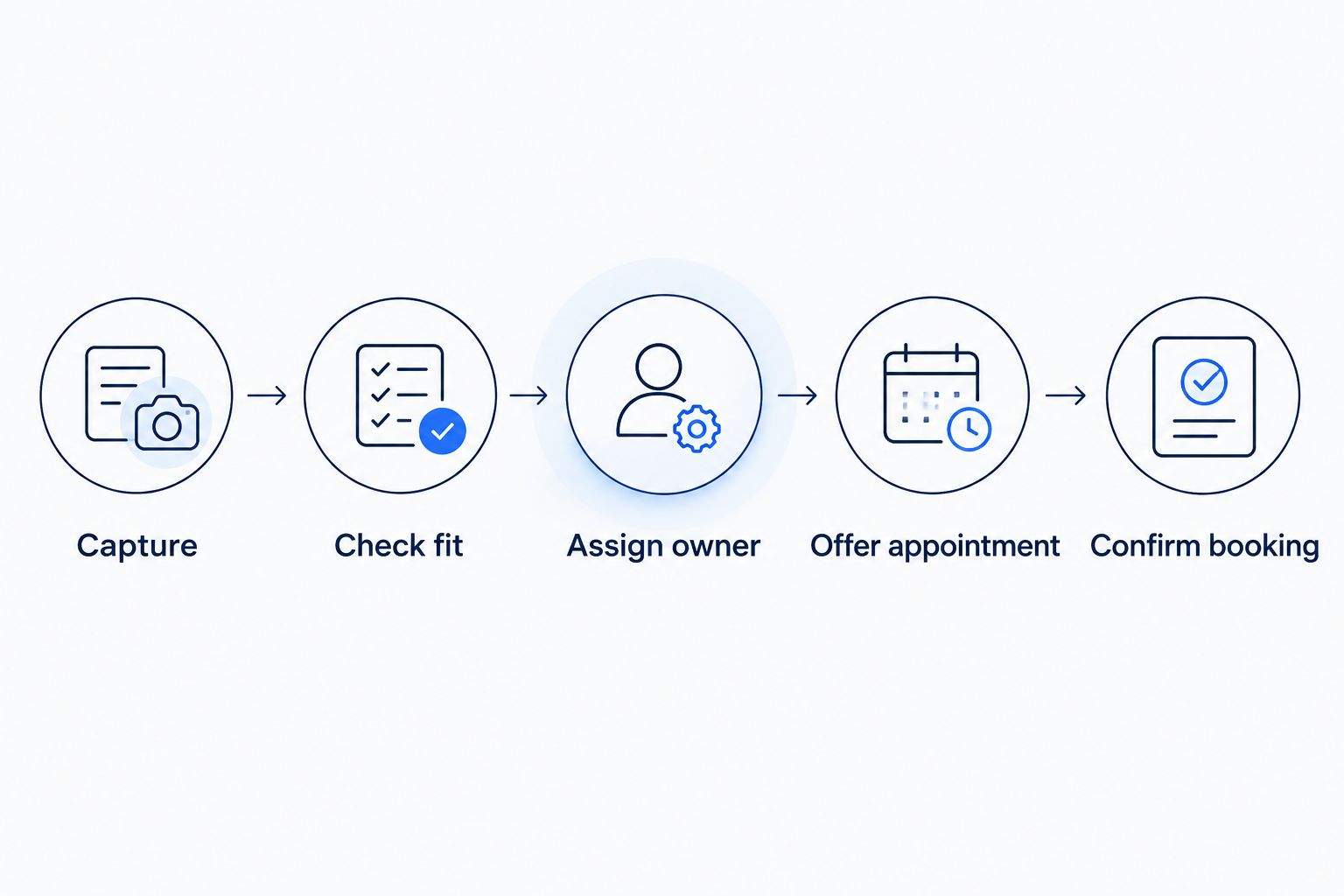
Check fit and assign responsibility before treating an inquiry as a confirmed appointment.
Connect the intake submission to your customer-record system using a supported connection. If none exists, establish a named manual entry task. Document which application creates the record and which application stores the booking.
Define your own record fields before mapping data between tools. Useful field names include Inquiry source, Service requested, Service location, Assigned owner, and Booking status. These are proposed field names, not labels guaranteed to exist in your software.
Check the submitted location against your service area. Route missing or ambiguous locations to a person rather than accepting or rejecting them automatically.
Add useful details to the incoming lead when those details improve follow-up. This is inbound lead enrichment: organizing submitted information and adding relevant context, such as the service region associated with an address. It is not outbound prospect-list research.
Assign one responsible owner. Give that owner the inquiry details, the reason for the routing decision, and the next action. Send uncertain scope, conflicting details, and special requests to a review queue.
Send an acknowledgment through the customer's permitted contact channel. Explain whether staff will review the request or whether the customer can proceed to scheduling. Do not promise a response deadline your team has not agreed to meet.
Keep enrichment separate from customer statements. A derived service region must not overwrite the address the customer entered. If enrichment fails, preserve the inquiry and flag the missing detail.
Expected result: Every captured inquiry has an owner and a next action. Missing information produces a review task rather than a silent stop or an automatic rejection.
Scheduling and confirmation controls
Build the booking connection around the calendar your team actually uses. For a 2026 implementation, confirm the available settings and supported connections inside your chosen scheduler before configuring the automation.
Set appointment duration, working hours, travel allowances, and calendar conflict checks using your real operating requirements. If staff need preparation time, account for it before exposing appointment slots.
Offer scheduling only after the inquiry passes the relevant rules. For reviewed jobs, staff approval should release the booking invitation. For direct booking, the eligibility checks must happen before confirmation.
Connect the scheduler's confirmed-booking event to the existing inquiry record. Store the appointment identifier, scheduled time, time zone, and assigned staff member where your tools support those fields.
Update the existing record instead of creating another lead for the same booking. Use the inquiry identifier when the connection supports it. If it does not, define a matching rule and send ambiguous matches for review.
Configure confirmation and reminder messages in one responsible system. Tell customers what the appointment covers, how to change it, and what information to have ready. Avoid duplicate messages from overlapping tools.
Run at least 3 test inquiries before launch: an accepted request, an out-of-area request, and a request with missing details. This is a proposed acceptance test, not a performance benchmark. Verify the record, owner, customer message, and calendar outcome for each case.
Expected result: An accepted appointment appears in the operating calendar and updates the original inquiry. A booking request that still needs approval remains visibly unconfirmed.
Update follow-up whenever an appointment changes
The second workflow handles changes after booking. Without it, staff can chase a customer who already rescheduled or prepare for a canceled visit.
Connect supported rescheduling and cancellation events from your scheduler to the same appointment record. Match by appointment identifier where available.
Update the appointment time or status. Notify the assigned employee when the change affects preparation, travel, or an existing task.
Stop reminders associated with the old appointment. Check whether your scheduler handles this automatically before adding another automation.
Route cancellations that need personal attention to the responsible employee. Do not automatically pursue every canceled appointment without considering the customer's request and contact permissions.
For inquiries that never become bookings, create an internal follow-up task under your own timing rules. A page visit alone is not a reliable indication that a particular customer abandoned scheduling.
Expected result: The calendar, inquiry record, and staff task agree about the current appointment. Old reminders and outdated preparation tasks no longer remain active.
Troubleshooting
The customer booked, but no inquiry record updated
Check the scheduler connection and inspect the failed event or task. Confirm that the booking carries an identifier your customer-record system can match. Replay failed events only after checking whether a partial record already exists.
Two employees receive the same follow-up task
Check whether the form and scheduler both create assignments independently. Choose one assignment rule and make later events update the existing task. Keep a visible fallback owner for inquiries that cannot be matched.
Service details conflict or disappear
Check field mapping before blaming the customer. Preserve original submissions and store added context separately. Use the missing or conflicting lead details guide to define which discrepancies need a person to resolve them.
Customers receive the wrong appointment time
Check the scheduler's time zone, the connected calendar, and the time displayed in confirmation messages. Test a complete booking and reschedule rather than comparing settings alone.
Calls from Google never reach the workflow
Check the call-handling process. Staff must log the inquiry and assign follow-up, or a supported phone-system connection must create that record. A tracked website form does not account for phone inquiries by itself.
Customize your workflow
After the core path works, extend it into appointment preparation, onboarding, or invoicing. Keep separate approval points: a confirmed appointment does not authorize a quote, approve additional work, or establish that a job is complete.
ClearPilot Consulting's workflow-first business automation consulting starts with how work moves through your business. That includes deciding where people must approve exceptions, not simply connecting every available tool.
For your 2026 review, track inquiries, qualified inquiries, confirmed appointments, and completed jobs as separate stages. Record cancellation reasons where customers provide them. Use those records to identify the handoff that needs attention rather than treating profile activity as booked revenue.
Request a free automation assessment
Discuss where incoming inquiries stall and which handoff to map first.
FAQ
How do I connect Google Business Profile to booked appointments?
Send visitors from your profile to a working intake or booking page, then connect submitted inquiries to qualification, scheduling, and confirmation. Keep an inquiry record so the confirmed appointment can be traced back to its source.
Can Google Business Profile automatically book every inquiry?
A Google Business Profile does not decide whether every inquiry qualifies for your services. Your booking destination and operating rules determine which appointments customers can confirm and which requests need staff review.
Should I let customers book directly or request an appointment?
Use direct booking for appointments with predictable eligibility and duration. Require review when service area, job scope, travel, or crew requirements must be checked before acceptance.
What information should I collect before offering an appointment?
Collect the customer's contact details, requested service, service location, and preferred timing. Add other questions only when the answers affect routing, preparation, or acceptance.
How do I include phone calls from my Google profile?
Create the same inquiry record for phone calls that you create for form submissions. Staff can log the details, or a supported phone-system connection can create the record and follow-up task.
What happens if an automation fails after a customer books?
Send the failed handoff to a responsible person and preserve the booking information. Check for partial updates before replaying the event so recovery does not create duplicate records or messages.
Can ClearPilot Consulting help map this workflow?
ClearPilot Consulting maps business workflows and implements automation for local businesses. The free automation assessment is a place to discuss inquiry handling, existing tools, and the handoff that needs attention first.
One last thing
Test a cancellation before you finish your 2026 launch review. A successful booking proves that information can move forward; a cancellation tests whether the workflow can stop obsolete work. Check the calendar, reminders, staff tasks, and inquiry status together.