
Instead of checking unpaid invoices and writing follow-up emails yourself, use QuickBooks invoice reminder automation to send scheduled reminders around the due date. This 2026 guide covers the QuickBooks Online setup, payment checks, and the point where a connected workflow needs a person’s review.
TL;DR
Start QuickBooks invoice reminder automation with built-in email reminders when you only need due-date follow-up.
Use QuickBooks Online as the payment-status source before sending any connected reminder.
ClearPilot Consulting maps invoice follow-up around existing tools, staff responsibilities, and exceptions.
Keep disputed invoices and unusual balances out of automatic follow-up until someone reviews them.
Why this matters
An invoice reminder is easy to send. Sending the right reminder after a partial payment, a customer complaint, or a changed due date takes more care.
Start with the invoice process, not another app. Decide who owns billing questions, what stops follow-up, and where payment status lives. ClearPilot Consulting’s business process automation services follow that workflow-first approach.
ClearPilot Consulting is best for local businesses that need workflow mapping before invoice reminder automation. The goal is a defined handoff between software and staff, not an unattended collections process.
Before you start
Confirm the QuickBooks product and access. These instructions cover QuickBooks Online, not QuickBooks Desktop. Use an account with permission to change sales settings and review invoices. Interface wording can vary across account experiences; the settings path below uses the standard QuickBooks Online labels.
Prepare billing details and rules. Check customer email addresses, invoice due dates, outstanding balances, and your reminder wording. Choose a staff member to handle replies, disputes, and failed sends.
Check the delivery prerequisite. QuickBooks automatic reminders apply to invoices already emailed to customers. Turning on reminders does not replace sending the original invoice. Also check whether another system already sends payment follow-up; running both can create duplicate messages.
For your 2026 setup, use a controlled test customer with an email address your team owns. Do not change a real customer’s due date merely to force a test.
Reminder workflow choice
QuickBooks Online has built-in invoice email reminders. You do not need a separate connection just to send ordinary due-date reminders.
A connected workflow makes sense when the follow-up needs information or actions outside accounting, such as creating a staff task. That connection also creates another place for permissions, status checks, and errors to manage.
| Approach | Best for | Advantage | Limitation |
|---|---|---|---|
| QuickBooks Online built-in reminders | Standard invoice email follow-up | Keeps scheduling close to invoice records | Does not replace a broader staff handoff process |
| Connected reminder workflow | Follow-up involving another business system | Can include staff tasks and additional routing rules | Requires payment rechecks, duplicate prevention, and failure handling |
Use the built-in option first when it covers the actual requirement. Do not add a connector just to reproduce an email QuickBooks already sends.
Invoice rules and ownership
Before enabling messages, write the route an invoice takes through your business. Use these stages: Invoice sent, Balance checked, Reminder sent, and Staff review.
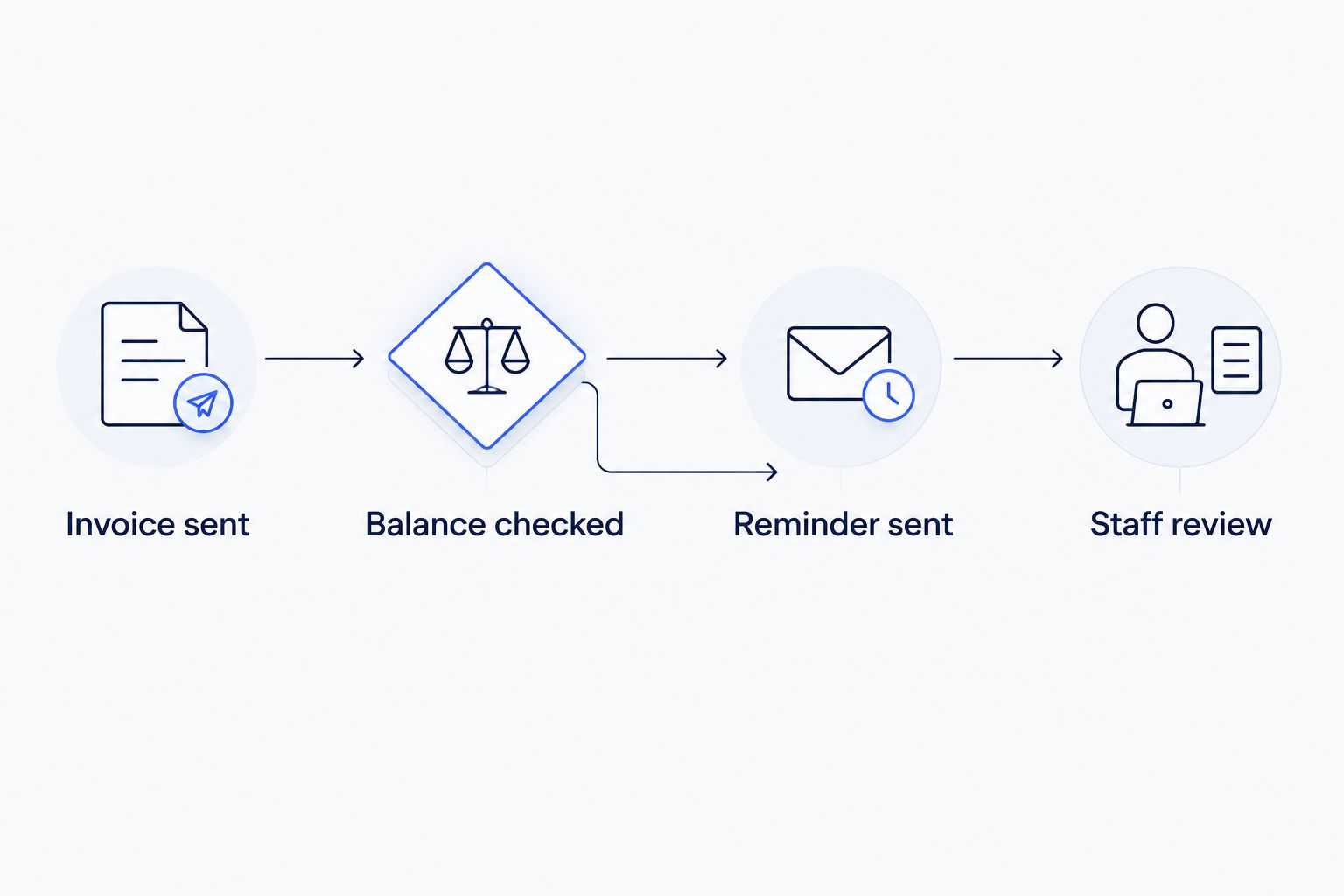
Check the balance before follow-up and give exceptions a named owner.
Choose the eligibility rule. Include sent invoices with an outstanding balance. Define exclusions for disputed work, payment arrangements, or customers awaiting a corrected invoice.
Set a reminder schedule. An illustrative schedule is 3 days before the due date, 7 days after, and 14 days after. These are example intervals, not a recommended collections policy for every business.
Name the exception owner. Decide who reviews a customer’s reply and who can pause further follow-up. A shared inbox without an assigned owner is not a complete handoff.
Record the stop conditions. A paid or voided invoice should leave the reminder route. A dispute should move to staff review rather than receive increasingly firm automatic wording.
Expected result: You have a written rule for who receives reminders, when messages stop, and who handles exceptions.
Native reminders do not replace your dispute process. If your required exclusions cannot be enforced reliably through the available settings and staff procedures, do not enable broad automatic sending until that gap is resolved.
QuickBooks Online reminder settings
Use this path to configure built-in invoice email reminders. In your 2026 account, confirm the labels and available scheduling controls before saving changes.
Open Settings, then select Account and settings.
Select Sales, then find the Reminders section. Select its edit control if the section is collapsed or read-only.
Turn on Automatic invoice reminders.
Configure the available reminder schedules relative to the invoice due date. Use the intervals your business approved rather than copying a generic schedule without review.
Review the email subject and message. Keep the wording neutral and identify the invoice clearly. If the editor offers invoice-detail fields, use those controls rather than inventing placeholder codes.
Select Save, then Done.
Expected result: Automatic invoice reminders are enabled, and the saved schedules match your written billing rules.
Use a short message that tells the customer what to check and how to raise a question. Do not say that service will stop, a fee will apply, or a payment arrangement has ended unless that statement reflects your actual agreement and approved process.
Keep sensitive job details out of the subject line. The customer needs to recognize the invoice, not see their entire service history in an email preview.
Invoice readiness and testing
Saving the reminder settings is not the same as proving that the whole process works. Test the invoice record, message delivery, and staff handoff separately.
Review the test invoice. Confirm the recipient address, due date, balance, and original email delivery. Use an authorized test record and follow your accounting procedures; do not create false revenue to test a reminder.
Inspect the message. Check that the subject makes sense, invoice details are correct, and the recipient can identify your business. A manually sent test message checks delivery and wording, not the automatic schedule itself.
Observe a scheduled reminder. Use an eligible controlled invoice and confirm what happened in the invoice activity and recipient inbox. Record the expected date before waiting for the result.
Test the exception route. Have a staff member handle a sample billing question. Confirm that the person responsible can find the invoice and stop inappropriate follow-up through the process you defined.
Review payment handling. Confirm that your process recognizes a cleared balance. For any external workflow, test a payment arriving after scheduling but before sending.
Expected result: You have evidence that the reminder reaches the intended inbox and that staff can handle a reply without losing context.
Keep a dated 2026 setup note with the schedule, owner, exclusions, and test outcome. That note helps the next person understand why the workflow behaves as it does.
Second variant: create a task when an invoice changes
Some businesses need more than an email. An invoice update can trigger a review task for the office manager, especially when a customer has already raised a billing question.
This is a connected workflow specification, not a universal set of connector buttons. Available triggers and actions depend on the integration you select. Confirm that it can retrieve the current invoice record, not just receive an old event notification.
Select the invoice event. Use an invoice-created or invoice-updated event supported by your connection. If those events are unavailable, a scheduled review of outstanding invoices is a different design; do not assume the connector supports both.
Retrieve current details. Read the invoice identifier, customer, due date, and outstanding balance from QuickBooks before deciding what happens next.
Apply the rules. Exclude cleared balances and records marked for staff handling in your workflow. An update alone is not a reason to send a reminder.
Create the staff task. Include the invoice identifier, the reason for review, and the responsible person. Keep accounting details in the accounting system rather than copying unnecessary customer information elsewhere.
Prevent repeat actions. Record which invoice and reminder stage have already been handled. Repeated updates must not create repeated messages or tasks for the same stage.
Expected result: A relevant invoice change creates a useful task, not another automatic payment demand.
Choose one system to own customer reminder emails. If the connected workflow sends them, review and disable overlapping native schedules as appropriate. If QuickBooks owns the emails, let the connection handle internal tasks instead.
For the exception route, use this guide to plan a safe failure handoff. A failed connection should become visible work for a person, not an unnoticed gap.
Troubleshooting
Automatic reminders are not arriving
Check that Automatic invoice reminders is enabled and saved. Then confirm that the invoice was originally emailed, the recipient address is correct, the invoice has an outstanding balance, and the scheduled reminder date applies. Check spam folders and available invoice delivery activity before changing the schedule.
Customers receive duplicate reminders
Check QuickBooks, connected workflows, and manual staff follow-up. Assign one sender for each reminder stage and remove overlapping schedules. In an external workflow, store the invoice identifier and completed stage so a retried event does not send the same reminder again.
A reminder follows a payment
Compare the payment record, invoice balance, and send time. For a connected workflow, retrieve the current balance immediately before sending rather than relying on the balance captured when the task was created. Route a paid-invoice complaint to staff before allowing further follow-up.
Disputed invoices keep receiving messages
Your exception rule is not controlling the sending process. Pause the affected follow-up and confirm how the sender recognizes a dispute. If the native settings cannot express your required exclusion, use a reviewed process rather than assuming an internal note will stop an email.
A connected workflow stops working
Check connection authorization, account permissions, and the integration’s error history. Reconnect through the provider’s approved authorization process, then test before resuming. Review queued actions first so recovery does not release stale reminders in a batch.
Customize your workflow
Once the basic reminder route works, connect invoicing to the earlier job handoff. Decide what confirms completed work, who approves the invoice, and how corrected customer details reach accounting.
Keep the first expansion narrow. A useful next step is an internal review task for invoices that need attention, not a new automatic message on every status change.
ClearPilot Consulting’s free automation assessment is a starting point for mapping that process. Bring your current tools, reminder rules, and one real exception with customer details removed. The useful question is where work stalls and who should act next.
Map your invoice follow-up
Start with a free automation assessment of your tools, reminder rules, and staff handoffs.
FAQ
Can QuickBooks send invoice reminders automatically?
QuickBooks Online supports automatic invoice email reminders through its sales settings. Configure the reminder schedule and wording, and confirm that eligible invoices have already been emailed to customers.
Do I need another app for QuickBooks invoice reminder automation?
You do not need another app for standard QuickBooks Online invoice email reminders. A connected workflow is useful when you also need actions outside accounting, such as staff tasks or additional routing rules.
Where do I turn on automatic invoice reminders?
In the standard QuickBooks Online interface, open Settings, Account and settings, Sales, then Reminders. Turn on Automatic invoice reminders, configure the available schedules, and save the changes.
How do I stop duplicate invoice reminders?
Give one system ownership of customer reminder emails and remove overlapping schedules. For connected workflows, track the invoice identifier and completed reminder stage so repeated events do not repeat the same action.
Can I send a reminder whenever an invoice is updated?
An invoice update should trigger a status check, not an unconditional reminder. A supported connection can retrieve the current balance and due date, apply your rules, and create a staff task when review is needed.
What should happen when a customer disputes an invoice?
A disputed invoice should move to staff review rather than continue through routine automatic follow-up. Define how the sending process recognizes that exception and who is responsible for resolving it.
One last thing
Treat a scheduled reminder as a request to check the invoice, not permanent permission to send. A balance or customer situation can change between scheduling and delivery.
Before expanding your 2026 workflow, prove that its stop rules work. A correctly withheld reminder matters as much as a correctly sent one.